Step-by-Step Guides
Download and install NotBot
Get the NotBot app from our website and install it on your Mac or Windows computer.
Last updated 2026-09-29 · Applies to NotBot 1.4.4+
NotBot is a program you install on the computer you use during your shows. You download it from our website once; after that it updates itself. The whole thing takes about five minutes.
Before you start
- An account with an active free trial or subscription. If you don't have one yet, follow Create your account and start your free trial first.
- A Mac with macOS 12 (Monterey) or later, or a Windows 10 or Windows 11 computer (64-bit). Install NotBot on the computer your label printer is plugged into.
Get the installer from our website
Step 1: Sign in on our website
On the computer you want to install NotBot on, go to mellowtools.com and click Sign In at the top right.
Sign in the same way you signed up: type your email address (1) and password (2) and click Sign in (3), or click Google or Apple at the top of the box.

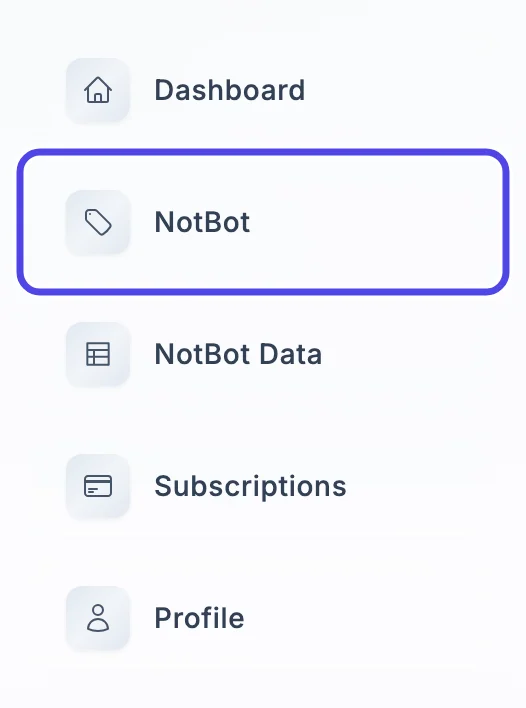
Step 2: Click NotBot in the menu
Your dashboard opens. In the menu on the left side of the page, click NotBot.
(The Download & Setup button on the dashboard goes to the same place.)
Step 3: Find the download buttons
The NotBot page opens. To the right of Download NotBot Desktop App there are two boxes (on a small screen they are below it):
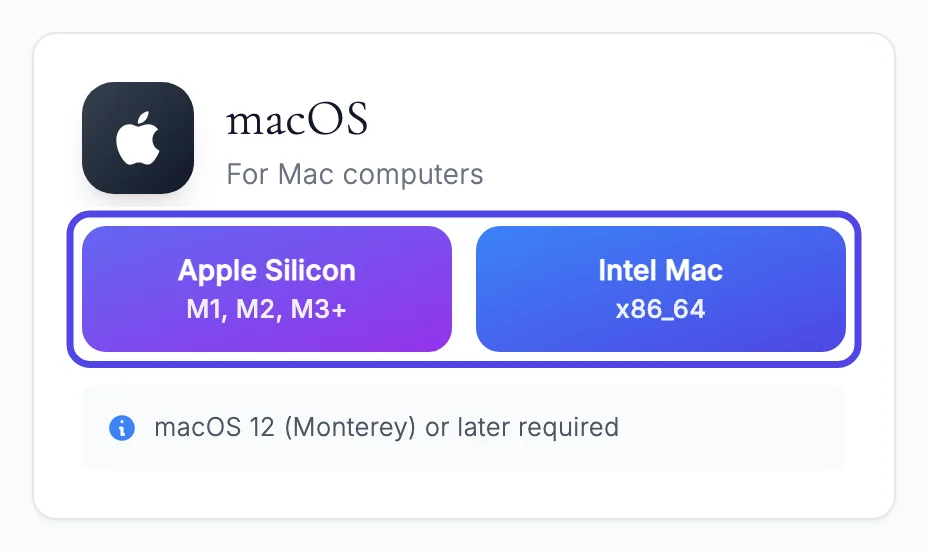
- macOS, for Mac computers.
- Windows, for Windows PCs.
Use the box for the computer you are on now, and follow the matching part of this guide: On a Mac or On Windows.

On a Mac
Step 4: Check which kind of Mac you have
There are two Mac downloads, one for each kind of Mac. To see which one you have:
- Click the Apple menu (the apple at the very top left of the screen).
- Click About This Mac.
- Look at the line near the top:
- If it says Chip and then Apple M1, M2, M3, M4 or similar, you have an Apple Silicon Mac.
- If it says Processor and then Intel, you have an Intel Mac.
Close the small window when you are done.
Good to know: Most Macs sold since late 2020 are Apple Silicon.
Step 5: Click the button for your Mac
In the macOS box, click Apple Silicon (the purple button on the left) or Intel Mac (the blue button on the right).
Your browser downloads a file whose name starts with NotBot and ends in .dmg. In Safari, a download arrow appears at the top right of the window; in Chrome, a download icon appears at the top right.
Step 6: Open the downloaded file
When the download finishes, open it: click the download arrow at the top right of your browser and click the NotBot file. You can also open your Downloads folder (in the Dock or in Finder) and double-click the file.
A window opens with the NotBot icon on the left and an Applications folder on the right.
Step 7: Drag NotBot into Applications
Click and hold the NotBot icon, drag it onto the Applications folder in the same window, and let go.
A small progress bar shows while it copies. When it disappears, NotBot is installed. You can close the window.
Tip: In Finder's sidebar there is now a NotBot disk. Click the eject arrow next to it to put it away. You can also delete the .dmg file from Downloads; you don't need it anymore.
Step 8: Open NotBot for the first time
Open Finder, click Applications in the sidebar, and double-click NotBot.
The first time, your Mac asks: "NotBot" is an app downloaded from the Internet. Are you sure you want to open it? Click Open. It asks this only once.
NotBot opens. Skip to Next: sign in.
Tip: To keep NotBot in your Dock, right-click (or Control-click) its icon in the Dock while it is open, then choose Options and Keep in Dock.
On Windows
Step 9: Click Download for Windows
In the Windows box, click the blue Download for Windows button.
Your browser downloads a file whose name starts with NotBot-Setup and ends in .exe. In Edge and Chrome, a download icon appears at the top right of the browser.

Step 10: Open the installer
When the download finishes, click the download icon at the top right of your browser and click the NotBot-Setup file. You can also open File Explorer, click Downloads, and double-click the file.
Good to know: If Windows asks Do you want to allow this app to make changes to your device?, click Yes.
Step 11: If Windows says "Windows protected your PC"
Windows sometimes shows a blue box that says Windows protected your PC the first time you run a new version. This is a general warning for programs it hasn't seen often.
- Click More info (the small underlined words under the message).
- Click the Run anyway button that appears at the bottom.
If you don't see this box, go on to the next step.
Step 12: Choose who can use NotBot
The NotBot Setup window asks who to install it for. Leave Only for me selected and click Next.
(Choose Anyone who uses this computer only if other people sign in to this computer with their own Windows accounts and also run your shows.)
Step 13: Click Install
The next screen shows the folder NotBot will be installed in. Leave it as it is and click Install.
A green bar fills up while NotBot installs. This takes less than a minute.
Step 14: Click Finish
The last screen says the setup is complete. Leave Run NotBot ticked and click Finish.
NotBot opens. The installer also puts a NotBot icon on your desktop and in the Start menu, so you can open it again later.
Next: sign in
Step 15: Sign in to NotBot
On both Mac and Windows, NotBot opens with Welcome to NotBot in the panel on the right side of its window.
Click Login to Continue and follow Sign in to NotBot.

If something looks different
There is no NotBot in the menu on the left
Your account has no active trial or subscription yet. Click Subscriptions in the menu and start your trial, as shown in Create your account and start your free trial. Then NotBot appears in the menu.
My Mac says NotBot can't be opened, or that it isn't supported on this Mac
You may have downloaded the version for the other kind of Mac. Drag NotBot from Applications to the Trash, check which Mac you have (Apple menu, About This Mac), and download with the other button. Also check that your Mac has macOS 12 (Monterey) or later; NotBot does not run on older versions.
My Mac asks again every time I open NotBot
You may be opening NotBot from the NotBot disk or the Downloads folder instead of from Applications. Drag it into the Applications folder (Step 7), eject the NotBot disk, and open it from Applications.
My browser says the file "isn't commonly downloaded" or blocks it
Some browsers warn about any new program file. In Edge, point at the file in the downloads list, click the three dots next to it, choose Keep, then Show more and Keep anyway. In Chrome, click Keep or Download anyway.
I clicked "Don't run" on the Windows protected your PC box
Nothing was installed. Double-click the NotBot-Setup file in your Downloads folder again, and this time click More info, then Run anyway.
My antivirus program warned about NotBot
Some antivirus programs quarantine the small helper NotBot uses to print. If labels never print later, open your antivirus program, restore or allow NotBot, then uninstall NotBot and install it again with the steps above.