Step-by-Step Guides
Keep win photos from filling your disk
See how much space win photos use, set a limit so NotBot removes the oldest ones, pick the photo quality, or turn photos off.
Last updated 2026-10-08 · Applies to NotBot 1.4.4+ · Identical to the stable docs
The moment an auction ends, NotBot saves a photo of your show on screen, so you can see later which item sold and who won (see Look back at a show in Show History). Photos are on unless you turn them off, and they stay on this computer. A seller who runs many shows a week collects a lot of them, so this guide shows how to check the space they use and keep it in check.
Before you start
- NotBot is open and signed in. See Sign in to NotBot.
Open Capture & photos
Step 1: Click Customize
In the purple bar at the very top of NotBot, click Customize.

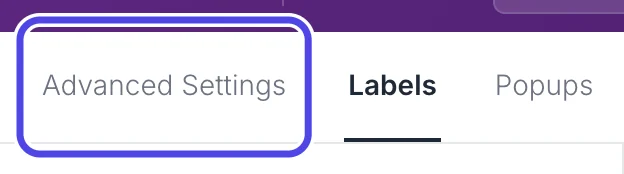
Step 2: Click Advanced Settings
Near the top left of the Customize page, click Advanced Settings.
Step 3: Click Capture & photos
In the list on the left, under SHOW, click Capture & photos.

Check and limit the space photos use
Step 4: See how much space photos use
Under Storage, the first line says how many photos NotBot has, from how many shows, and how much space they take on this computer, for example 19 photos from 3 shows use 5 MB on this computer. It counts photos from every show on this computer.

Step 5: Open the Keep list
Keep starts at Everything: NotBot never removes a photo on its own. Click the box to set a limit.

Step 6: Pick a limit
Pick one of two kinds of limit:
- Up to 1 GB (or 2, 5, 10 or 20 GB): a size limit for all photos together.
- Photos from the last 10 shows (or 25, 50 or 100; scroll the list to see them all): keeps photos only for your newest shows.
When the photos go past the limit, NotBot removes the oldest first. Photos from the show you have open are never removed, and the shows themselves (sales, buyers, chat) stay in Show History.
If the limit you pick would remove photos right away, NotBot first asks Remove ... photos? and says how much space that frees. Click Remove photos to go ahead, or Cancel. Removed photos cannot be brought back. This guide picks Photos from the last 25 shows.

Step 7: Find the photos on your computer
To look at the photo files yourself, or copy them somewhere else before NotBot removes them, click Show photos folder. The folder opens in Finder (Mac) or File Explorer (Windows).
Change or delete files in that folder only if you are sure: Show History reads its photos from there.

Smaller photos, or none at all
Step 8: Pick the photo quality
Above Storage, Photo quality sets how big each new photo is:
- High: the sharpest photos, the largest files.
- Standard (the starting choice): clear enough to read most item details.
- Compact: the smallest files.
It only changes photos taken from now on.

Step 9: Turn photos off if you don't use them
To stop taking photos, click the switch next to Save a photo of each auction win so it turns gray. NotBot stops saving new photos; the ones you have stay until you remove them with Keep, or clear or delete their show.
Only the show in the tab you are looking at gets photos, so a sale on another tab never has one.

If something looks different
My newest shows have no photos
Check that Save a photo of each auction win is on. NotBot only photographs the show in the tab you are looking at, and only auctions: Buy It Now sales and giveaways never have a photo.
Photos from an old show disappeared
A Keep limit removed them, oldest first. Removed photos cannot be brought back. Set Keep to Everything so NotBot keeps every photo from now on.
The storage line says Measuring… for a long time
NotBot is adding up a large photo folder. Leave the page open for a moment, or come back to it later.