Step-by-Step Guides
Look back at a show in Show History
Find a past show, see every sale with its photo, check each buyer, read the chat, and see the totals and who shared your show.
Last updated 2026-10-08 · Applies to NotBot 1.4.4+ · Identical to the stable docs
NotBot keeps every show it watched on this computer. Show History lets you open any of them after the show: every item that sold, who bought it and their buyer number, the chat, and the show's totals. You can also see who shared your show and reprint any label from here.
The pictures in this guide come from a practice show on NotBot Live, our practice marketplace, so the show screen in the sale photos looks different from your platform. Show History works the same for every platform.
Before you start
- NotBot is open and signed in. If it isn't, follow Sign in to NotBot.
- You have run at least one show with NotBot open. See Run your first show with NotBot.
Open a past show
Step 1: Click Show History
In the purple bar across the top of NotBot, click Show History.
You can do this at any time, even while a show is running. Your show keeps printing labels in the background.

Step 2: Find your show in the list
The list shows every show on this computer, newest first. Each row has the date and start time, the show's name, what it made (Revenue), how many auctions sold, how many buyers bought, and how long it ran.
To find an older show, type part of its name in the Search... box (1) at the top right.
To sort the list, click a column name such as Revenue (2). Click it again to flip the order.

Good to know: This list shows the shows saved on this computer. If you save your shows to your account, All devices at the top shows shows from your other computers too. See Save your shows to your account and back up.
Step 3: Click View on the show
On the row of the show you want, click the orange View button. Clicking anywhere else on the row works too.
The show's page opens. Nothing is deleted or changed by opening it.

Tip: Stay away from the red Delete button unless you mean it. Delete removes the show and everything in it from this computer, and it cannot be undone.
Step 4: Check that it is the right show
The top of the page shows the show's name, your shop name, and the date and time the show started and ended.
Under that is a row of tabs: Items, Buyers, Chat, Summary and Reports. The page opens on Items. The rest of this guide goes through them one at a time.

Good to know: If the end time says (inferred), NotBot worked out when the show ended from the last thing it saw happen. The show was still saved in full.
Items: everything that sold
The Items tab lists every sale in the show in groups: auctions first, then giveaways, then Buy It Now purchases. Inside each group the newest sale is at the top.
Step 5: Read an item
Each line is one sale, with the item's name on top. Under the name, the buyer's username is in orange with their buyer number for this show in a grey box next to it (1), for example #6. After that come the price in green, the Sale # number (it counts the auctions in order through the show, so Sale #9 is the ninth auction) and how long ago it sold.
The orange Print button (2) at the right end of the line sends that item's label to your printer again.

Step 6: Show only one kind of sale
Above the list, click Auctions to see only auctions. Purchases shows Buy It Now sales and Giveaways shows giveaways. The number in brackets is how many there were.
Click All to see everything again.

Step 7: Find a buyer or an item
Click the long box that says Filter items, buyer, or #number and type what you are looking for:
- part of an item name, like Rookie
- a buyer's username
- a buyer number with the # sign, like #2
The list shrinks to the matching sales as you type. Delete what you typed to see the whole list again.

Step 8: Click Grid to see the photos
At the right end of the same row, click Grid. The list turns into cards, one per item, each with a photo on top.
Click List to go back to the shorter lines. NotBot remembers which one you picked.

Step 9: Look at the win photo
The photo on each auction card is a picture of your show screen taken the moment that auction ended. It shows the item on camera and the sale as it looked at that moment, so you can match the item to the buyer while you pack.
Click a photo to see it full size.

Good to know: NotBot takes a photo for every auction win unless you turn off Save a photo of each auction win (Customize › Advanced Settings › Capture & photos). Buy It Now purchases show a small cart picture instead, and an auction without a photo shows a small box picture. Photos stay on this computer. To keep them from filling your disk, see Keep win photos from filling your disk.
Step 10: Close the big photo
The photo opens large, with the item, buyer and price underneath. If the label for this item got lost or damaged, click Reprint label to print it again.
To close the photo, click anywhere in the dark area around it.

Step 11: Click an auction to see its bids
Click the name of an auction card (not the photo or the Print button). A panel slides in from the right with the photo and the Bid history: every bid in order, who placed it and how much.
This is handy when a buyer asks what they bid, or when a winner does not pay and you want to offer the item to the next highest bidder.
To close the panel, click the × at its top right.

Buyers: who bought what
Step 12: Click the Buyers tab
Click Buyers in the row of tabs. You see one line per buyer, with their buyer number, what they spent in this show and how many items they got. The biggest spender is at the top. A small gift box means they won a giveaway.
To find one buyer, type their name or number in Filter buyers by name or #number.
The orange Print button on a buyer's line prints their buyer label (username and number) again, for example when an order needs a second box. Buyers without a number have no Print button.

Good to know: A buyer with no number did not get a buyer number in this show. In Buyer Only mode (the setting NotBot starts with), only auction wins hand out numbers unless you change what giveaways or Buy It Now purchases print in Customize › Advanced Settings › Label types, so someone who only bought with Buy It Now has no number. See Choose which labels print.
Step 13: Click a buyer to see everything they bought
Click a buyer's name. The page shows only that buyer: what they spent, how many auctions and purchases they won, and each of their items with its photo and Print button.
Click All buyers at the top left to go back to the full list.

Chat: what people said
Step 14: Click the Chat tab
Click Chat in the row of tabs. Every chat message NotBot saw during the show is here, with the time it was sent, in the order the messages came in. A long chat is split into pages of 100: the first page has the latest messages, and Next at the bottom goes back to earlier ones.
A buyer who has a buyer number in this show has it next to their name. Click the name of anyone who bought something to open their buyer page.

Step 15: Search the chat for a word
Click the Search messages... box and type a word, like shipping. Only the messages with that word stay on the screen, with the word highlighted in yellow.
Delete the word to see every message again.

Step 16: See one person's messages
Click the Username... box and type the first few letters of the person's username. As you type, only messages from matching names stay on the screen, and a list of those names opens under the box. Click the name you want to see only that person's messages.
This is useful when a buyer says they asked you something during the show. Click Clear to see everyone again.

Step 17: Look at part of the show
The bar with a round handle at each end covers the whole chat. 0m is the first chat message, and the number at the right end is how long after that the last message came, so it can be a little shorter than the show. Drag the left handle to the right, or the right handle to the left, to see only the messages from that part of the show.
Click Clear at the right end to show every message again.

Summary: how the show went
Step 18: Click the Summary tab
Click Summary in the row of tabs. The boxes at the top give the show's totals:
- Peak Viewers: the most people watching at once
- Buyers: how many different people bought something
- Auctions, Giveaways and Purchases: how many of each
- Revenue: the total of all the sale prices
- Avg Sale: the average price per item sold
- Duration: how long the show ran
- Chat Msgs: how many chat messages were sent
- Shares: how many times viewers shared the show (the next step explains it)
Below the boxes, the Stream Timeline chart shows viewers and sales through the show. Use its + and − buttons to zoom in.

Good to know: Revenue adds up the sale prices NotBot saw. It does not take off platform fees, shipping or tax, so it will not match your payout exactly.
Step 19: See who shared your show
On Whatnot, the last box, Shares, is how many times viewers shared the show, as Whatnot counts it. On other platforms it says N/A.
Under the boxes, Shared by lists each viewer who shared the show, how many times (for example 2×) and when they first shared. Thank them on air, or run a giveaway for sharers.

Good to know: NotBot learns who shared from the shared this show messages in the chat, so the list can be shorter than the count when a share did not post a chat message.
Payments and going back
Step 20: Click Payments to check for failed payments
At the top right of the show's page is a Payments button. When a buyer's payment failed during the show, it turns red and shows how many, like Payments (1). Click it.

Step 21: Mark a failed payment resolved
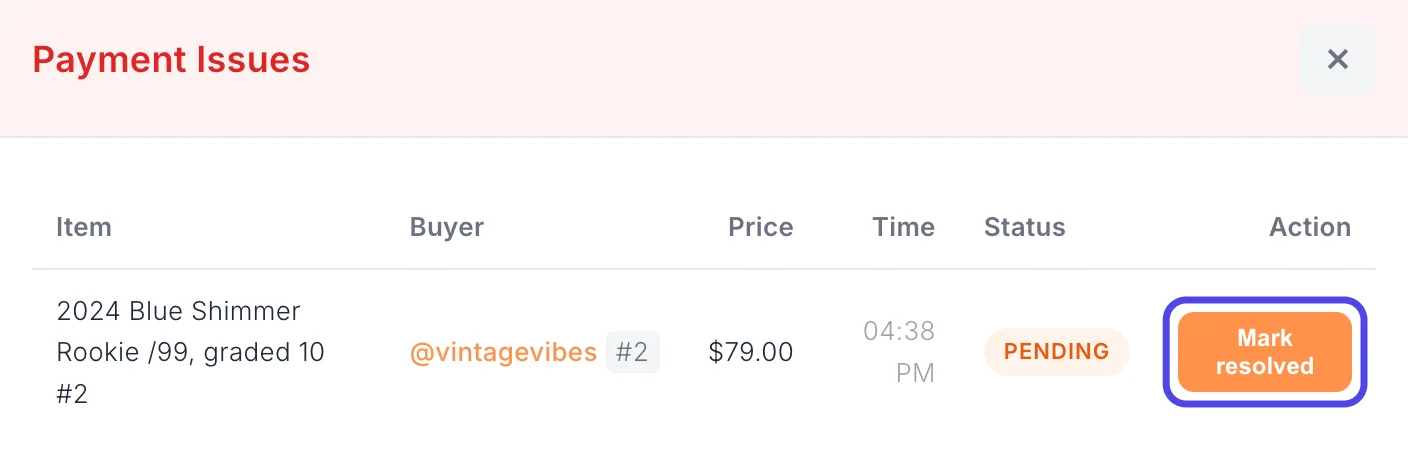
The Payment Issues panel lists each failed payment: the item, the buyer, the price and whether it is still Pending. When you have sorted it out with the buyer, click Mark resolved on its line. See Handle payment failures for what to do.
Close the panel with the × at its top right.
Step 22: Click Back to shows
When you are done, click Back to shows at the top right (there is another one at the bottom right). You are back at the list of shows, where you can open another one.
The Reports tab on a show's page makes printable lists from the show. See Print a buyer number report.

If something looks different
My show is not in the list
Show History only lists shows that NotBot watched on this computer. Check that you are looking at This computer at the top of the page and that the search box is empty. If you ran the show on another computer, open Show History there, or save your shows to your account and use All devices. See Save your shows to your account and back up.
A show says LIVE but it is over
LIVE marks the show NotBot is connected to right now. If the show is over, close NotBot and open it again and the LIVE mark goes away. Nothing in the show is lost.
There are no photos on my items
Photos are only saved for auctions, and only when Save a photo of each auction win is on (Customize › Advanced Settings › Capture & photos). NotBot takes the photo from the show on screen, so an auction that ended while you were on another tab or page of NotBot (like Show History) may have no photo. If you set a limit on Keep photos, NotBot removes the oldest photos first. See Keep win photos from filling your disk.
A sale is missing from the Items list
NotBot can only list sales it saw while the show was open. If the connection dropped or NotBot was closed during a sale, add it by hand. See Add a sale NotBot missed.
Delete says it cannot delete the show
NotBot will not delete the show it is watching right now, or a show that is still open in one of its tabs. Close that show's tab (or wait for the show to end), then click Delete again.