Step-by-Step Guides
Manage your computers on the website
See every computer that runs NotBot on your account, check which ones save their shows, and give each one a name you recognize.
Last updated 2026-09-29 · Applies to NotBot 1.4.4+ · Identical to the stable docs
The Devices page on our website lists every computer where you have signed in to NotBot. For each one it shows whether its shows are being saved to your account, when NotBot on it last connected, and how many of its shows are saved. You can also give each computer a clear name, such as "Shop laptop", so you can tell your shows apart on the website.
The pictures in this guide use a practice account with two computers.
Before you start
- You have signed in to NotBot on at least one computer. See Sign in to NotBot.
- You can sign in to our website with the same account you use in NotBot. See Create your account and start your free trial.
- To see shows on a computer's row, show saving must be on in NotBot on that computer. See Save your shows to your account and back up.
Open the Devices page
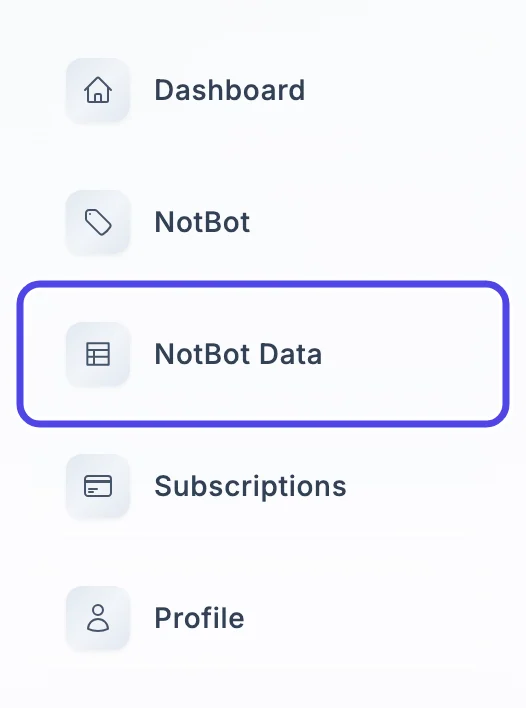
Step 1: Click NotBot Data in the menu
Sign in to our website with the same email and password (or Google or Apple) you use in NotBot.
In the menu on the left side of the page, click NotBot Data.
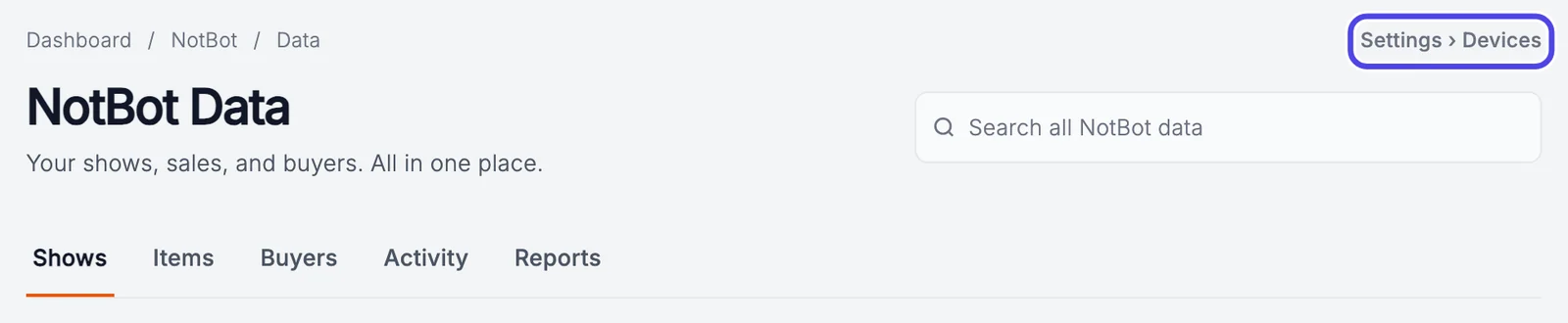
Step 2: Click Settings › Devices
The NotBot Data page opens. (See your shows on the website (NotBot Data) shows this page in detail.)
At the top right of the page, above the search box, click Settings › Devices.
Step 3: Look over the Devices page
The page is titled Devices. Each computer where you signed in to NotBot has its own row in the list.
A computer shows up here as soon as you sign in to NotBot on it, even before it saves any shows. If you use NotBot on two computers, you see two rows.
To go back to your shows, click NotBot Data → at the top right.

Read the list
Each row has five columns. Here is what each one tells you.
Step 4: Find each computer by its name
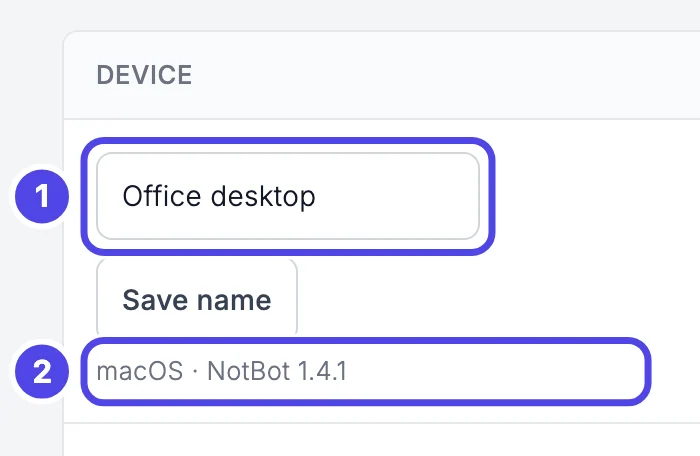
The Device column shows the computer's name in a white box (1). The small grey line under it (2) says what the computer runs (macOS or Windows) and the NotBot version it last told your account about. That version is updated when you sign in to NotBot on that computer and each time it sends show data, so a computer with sharing off can show an older version than it runs. To see the version it runs today, look at the small version number at the top of the NotBot window on that computer.
Until you rename it, a computer is listed under the name it gives itself on your network, for example DESKTOP-7QK2M4P on Windows or Sams-MacBook-Air.local on a Mac. The next part of this guide shows how to change it.
Step 5: Check whether its shows are saved
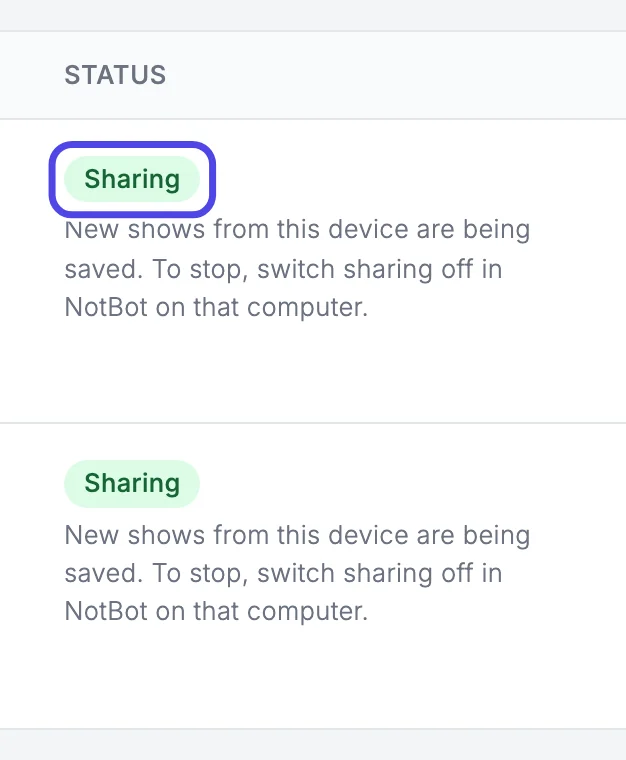
The Status column says whether the computer is saving its shows to your account:
- Sharing (green): every new show on this computer is saved to your account.
- Not sharing (grey): nothing from this computer is saved. Its shows stay only on that computer.
Sharing is switched on and off in NotBot on each computer, not on this page. In NotBot, open Customize › Advanced Settings › Sync & devices and use the Include data from this computer switch. Save your shows to your account and back up shows each click. Switching it off does not remove shows that are already saved.
Step 6: See when it last checked in and how many shows it saved
The last three columns:
- Last seen: the last time NotBot on that computer checked in with your account. That happens when you sign in to NotBot on it and each time it sends show data, so a computer with sharing off keeps the time it last signed in.
- Last data: the last time show data from that computer arrived. Waiting for first data means none has arrived yet. That is normal for a computer that has not run or uploaded a show since sharing was switched on.
- Shows: how many of this computer's shows are saved in your account. Shows you archived on NotBot Data are not counted.

Rename a computer
The name you choose here is the one NotBot Data shows in its Device column and Device filter, and the one NotBot shows in Show History under All devices.
Step 7: Clear the old name
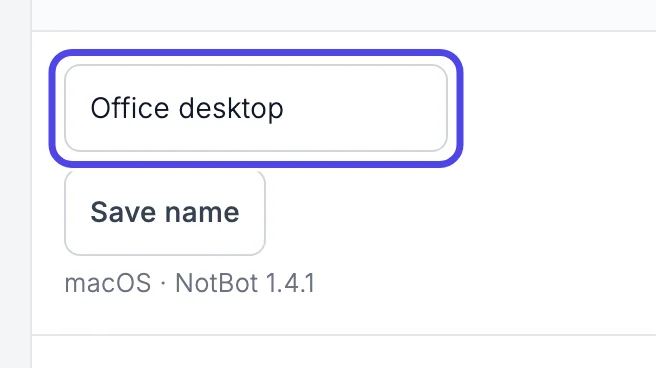
Click inside the white box with the computer's name. Delete the old name: press Backspace (on a Mac, delete) until the box is empty.
Step 8: Type the new name
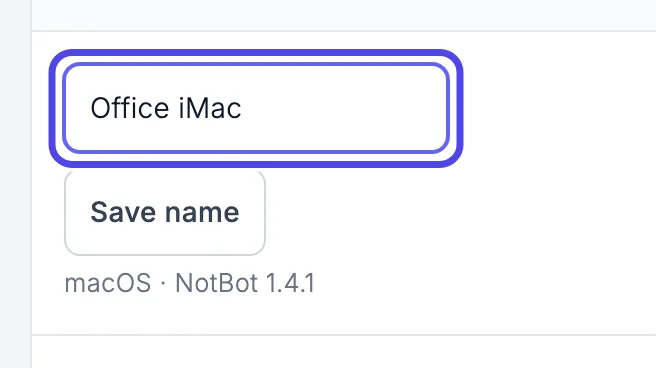
Type a name you will recognize, such as Office iMac. It can be up to 128 characters long.
Step 9: Click Save name
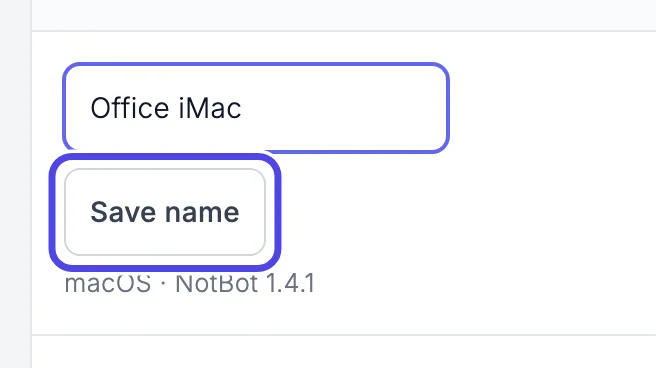
Click the Save name button under the box. The page reloads.
Step 10: Check the new name
A green note at the top of the list says Device name updated. and the row shows the new name.
The name stays when NotBot on that computer restarts or signs in again, and renaming does not change anything else: the computer keeps its shows and its sharing setting.
If you click Save name while the box is empty, a small message under the box asks you to fill it in, and nothing is saved. Type a name first. If a red note says That name could not be used. Enter a name up to 128 characters., the name was only spaces. Type a name with letters or numbers and click Save name again.

If something looks different
A computer I use is not on the list
A computer appears after you open NotBot on it and sign in with this same account. Open NotBot on that computer, check that it is signed in (see Sign in to NotBot), then reload the Devices page. If you have more than one account, check that you are signed in to the website with the same one.
The page says No devices yet
No computer has signed in to NotBot with this account yet. Sign in to NotBot on your computer, then reload the page.
The same computer is listed twice
Uninstalling and reinstalling NotBot keeps the same row. A second row appears only when NotBot's settings folder on that computer is deleted or renamed (for example when our support team asks you to reset NotBot). NotBot then joins your account again as a new computer and gets a new row. Look at Last seen to tell which row is the one in use now, and rename the old one to something like "Old laptop" so you can tell them apart. Shows saved from the old row stay in your account.
I want to remove a computer I no longer use
This page has no button to remove a computer. To make sure a computer saves nothing more, open NotBot on it and switch off Include data from this computer in Customize › Advanced Settings › Sync & devices. You can rename the old row so it is easy to recognize.
A computer shows Not sharing but I want its shows saved
Sharing is switched on in NotBot on that computer. In NotBot, open Customize › Advanced Settings › Sync & devices and turn on Include data from this computer. See Save your shows to your account and back up.
Last data still says Waiting for first data
Nothing has arrived from that computer yet. Show data is sent while a show runs and shortly after, so this changes after the first show you run on that computer with sharing on, or after you upload older shows from Past shows in NotBot on that computer (see Save your shows to your account and back up). If it still says this after a show, check that the computer is connected to the internet and that its Status says Sharing.
A computer is marked Removed
That computer was removed from your account, so it no longer saves shows. The shows it saved before are kept. To use it again, click Re-enable device under its name, then check that Include data from this computer is on in NotBot on that computer.
A red note says The name could not be saved. Try again.
The website could not save the name that time. Wait a moment, type the name again, and click Save name.
A yellow note appears under a computer's status
The note says what to do, for example to switch sharing on in NotBot on that computer, or to reopen NotBot there if it stays through the next show. It goes away by itself once that computer sends its data successfully.